 Screen Divider
How to split the screen on a Mac or MacBook
Split View does a clean 50/50, and it works the same on a MacBook as on an iMac or Mac mini. Here’s exactly how to use it (resize, swap, exit), the keyboard shortcuts Apple gives you, how to split without going full screen, and how to get layouts that aren’t halves.
Checked against Apple’s Mac User Guide on October 18, 2026; shortcuts rechecked October 20, 2026.
The built-in way: Split View
Split View puts two apps side by side in a new full-screen space. Apple’s steps (Use apps in Split View on Mac):
- Hold the pointer over the green button in the top-left corner of a window.
- Choose Full Screen › Left of Screen or Right of Screen.
- On the other side of the screen, click the second app you want.
Resize, swap or replace
- Resize: drag the separator bar between the two apps left or right. Double-click it to go back to the original sizes.
- Swap sides: drag a window by its title bar or toolbar to the other side.
- Use a different app on one side: click that side’s window, hold the pointer over the green button, choose Replace Tiled Window, then click the window you want instead.
Exit Split View
Hold the pointer over the green button in either window and choose Move Window to Desktop (back to a normal window) or Make Window Full Screen. The other app stays full screen in its own space.
Using more than one display? Split View on another display needs “Displays have separate Spaces” turned on in System Settings › Desktop & Dock.
Split View isn’t the same as Stage Manager, which keeps one app in the center of your normal desktop and the rest in a strip on the left. If windows keep shrinking to the side, see what Stage Manager is and how to turn it off.
Split screen keyboard shortcuts on Mac
Here’s the part that trips people up: Split View itself has no keyboard shortcut. Apple’s window tiling shortcuts page lists “Left of Screen” and “Right of Screen” (the Split View commands) with no shortcut. What macOS Sequoia (15) and later do have are tiling shortcuts that split your normal desktop without going full screen:
| Do this | Shortcut |
|---|---|
| Active window to the left or right half | Fn-Control-Left Arrow / Fn-Control-Right Arrow |
| Active window to the top or bottom half | Fn-Control-Up Arrow / Fn-Control-Down Arrow |
| Active window left, the next window right (two-app split) | Fn-Control-Shift-Left Arrow |
| Active window right, the next window left | Fn-Control-Shift-Right Arrow |
| Active window on the left half, two more stacked on the right | Fn-Control-Option-Shift-Left Arrow |
| Fill the screen / back to the previous size | Fn-Control-F / Fn-Control-R |
Fn-Control-Shift-Left Arrow is the closest thing to a one-key split screen: two apps side by side on your desktop in one press. Two other shortcuts help with Split View itself: Control-Command-F turns full screen on or off for the current app (our Mac full screen shortcut guide covers exiting, the menu bar and Fill), and Control-Up Arrow opens Mission Control, where you can drag a window onto a full-screen app’s thumbnail to pair them in Split View.
If you really want a shortcut for Split View, macOS lets you make one. In System Settings › Keyboard › Keyboard Shortcuts › App Shortcuts, add a shortcut for All Applications and type the menu command exactly as it appears in the Window menu, for example Window->Full Screen Tile->Left of Screen (Apple: Create keyboard shortcuts for apps). It only works in apps whose Window menu has that command.
How to split screen on a MacBook
A MacBook uses the same Split View and tiling as any Mac; only the keys and gestures differ a little:
- The Fn key in the tiling shortcuts is the key in the bottom-left corner of a MacBook keyboard, labeled fn or marked with a globe, depending on the model. Hold it with Control and press an arrow.
- Trackpad: swipe up with three or four fingers to open Mission Control (same as Control-Up Arrow), then drag a window onto a full-screen app in the Spaces bar to put them in Split View.
- Small screen: on a 13- or 14-inch display, two halves can feel cramped. Drag the separator bar to give the app you’re working in more room, and double-click it to go back to 50/50.
Plugging your MacBook into an external display? Each display can have its own Split View if “Displays have separate Spaces” is on (below). Switching to a MacBook from Windows? See the Mac equivalent of FancyZones and how Windows Snap shortcuts map to macOS.
Split screen without full screen: tiling
On macOS Sequoia (15) and later you can also split the screen on your normal desktop, without a full-screen space: drag a window to the left or right edge to fill that half, or use the Fn-Control shortcuts above. Our guide to tiling windows on a Mac covers every method and the settings.
Beyond 50/50
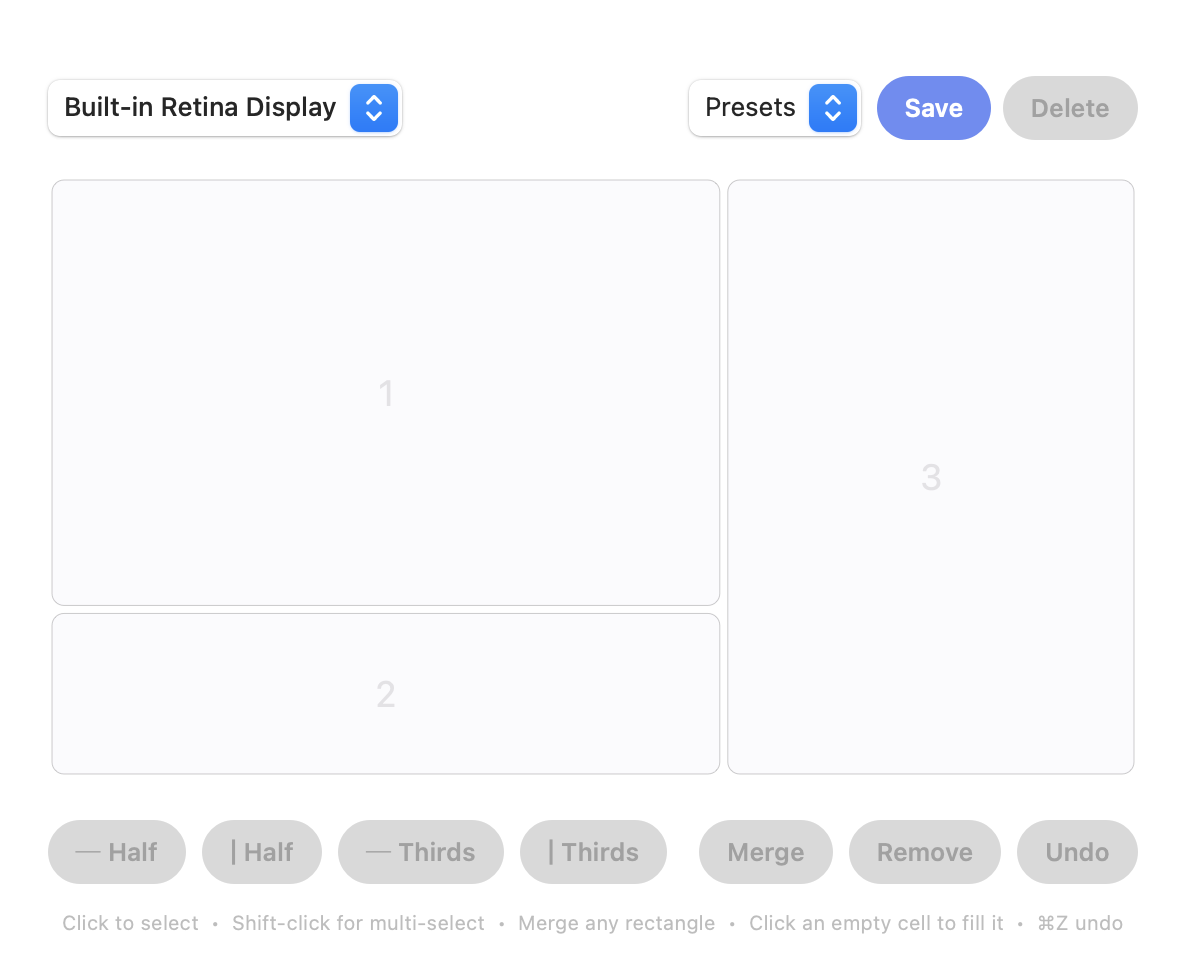
Split View and tiling both work in halves. Most real layouts aren’t two equal halves: you might want a main window at two-thirds, a reference panel beside it, and a short bar along the bottom. Screen Divider lets you split the screen at any ratio, into as many zones as you want, and merge cells into custom rectangles. Then you drag windows into those zones on your normal desktop (no full-screen space required).
How to do it with Screen Divider
- Install and grant Accessibility access when prompted.
- Open Edit Layouts, split the screen into the regions you want, and merge cells into zones.
- Drag any window toward a zone (an overlay shows the target) and release to snap and resize it.
For a walkthrough of all the options, see how to snap windows on a Mac. Already using a window manager? Read our honest comparisons: a Magnet alternative with custom zones, a Divvy alternative for grid layouts and a Moom alternative.
FAQ
Is there a keyboard shortcut for split screen on Mac?
Not for Split View itself. On macOS Sequoia (15) and later, Fn-Control-Left Arrow and Fn-Control-Right Arrow tile the active window to a half, and Fn-Control-Shift-Left Arrow puts two windows side by side. You can also create your own Split View shortcut in Keyboard settings › App Shortcuts.
How do I split screen on a MacBook?
The same way as any Mac: hold the pointer over the green button and choose Full Screen › Left of Screen or Right of Screen, or press fn-Control-Left Arrow on macOS 15 or later. The fn (globe) key is in the bottom-left corner of the keyboard.
How do I split screen on a Mac?
Hold the pointer over the green button in a window, choose Full Screen › Left of Screen or Right of Screen, then click a second app on the other side.
How do I get out of split screen on a Mac?
Hold the pointer over the green button and choose Move Window to Desktop or Make Window Full Screen.
How do I resize split screen on a Mac?
Drag the separator bar between the two apps. Double-click it to return to the original sizes.
Can I split a Mac screen into more than two parts?
Native Split View is two apps. Built-in tiling can do quarters. With Screen Divider you can split into as many zones as you like and snap a window into each.
Can I make uneven splits, like 70/30?
Split View lets you drag the divider, but only for two apps. In Screen Divider you build the grid at any ratio and merge cells into the zones you want.