 Screen Divider
How to snap windows on a Mac: window snapping explained
Window snapping is built into macOS now, and there are good apps for what it can’t do. Here’s how each approach works, which macOS version you need, and when a custom-zone app earns its place.
Built-in tiling details checked against Apple’s Mac User Guide on October 18, 2026; Windows mapping added October 21, 2026.
1. Built-in window snapping (macOS 15 and later)
Apple added native window tiling in macOS Sequoia (macOS 15, released in 2024), and later versions keep it. On macOS 15 or later you can snap a window without any app (Apple: Tile windows on Mac):
- Drag to an edge or corner. The left or right edge fills that half; a corner fills a quarter; the menu bar fills the screen.
- Hold Option while dragging to see where the window will land before you reach the edge.
- Green button or Window menu. Hover over the green button, or use Window › Move & Resize, for halves, quarters and multi-window arrangements.
- Shortcuts. Fn-Control-Arrow for halves, Fn-Control-F to fill, Fn-Control-R to undo.
Apple calls this tiling; our step-by-step guide on how to tile windows on a Mac covers every shortcut and the settings to turn it on or off. On macOS 13 or 14 there’s no edge snapping; you get Split View (two apps, full screen) and Stage Manager. Built-in tiling is great for a quick two-window split, but it stops at halves and quarters: no thirds, no uneven layouts, no saved zones.
2. Keyboard snappers
Apps like Rectangle (free) and Magnet snap the active window to halves, thirds, and quarters with keyboard shortcuts, and they work on older macOS versions. If your layout is a simple grid of equal regions, these are fast and dependable. Tools like Divvy, Moom and BetterSnapTool add grids, saved layouts or custom snap areas; see our Divvy, Moom and BetterSnapTool comparisons.
3. Custom drag-to-snap zones
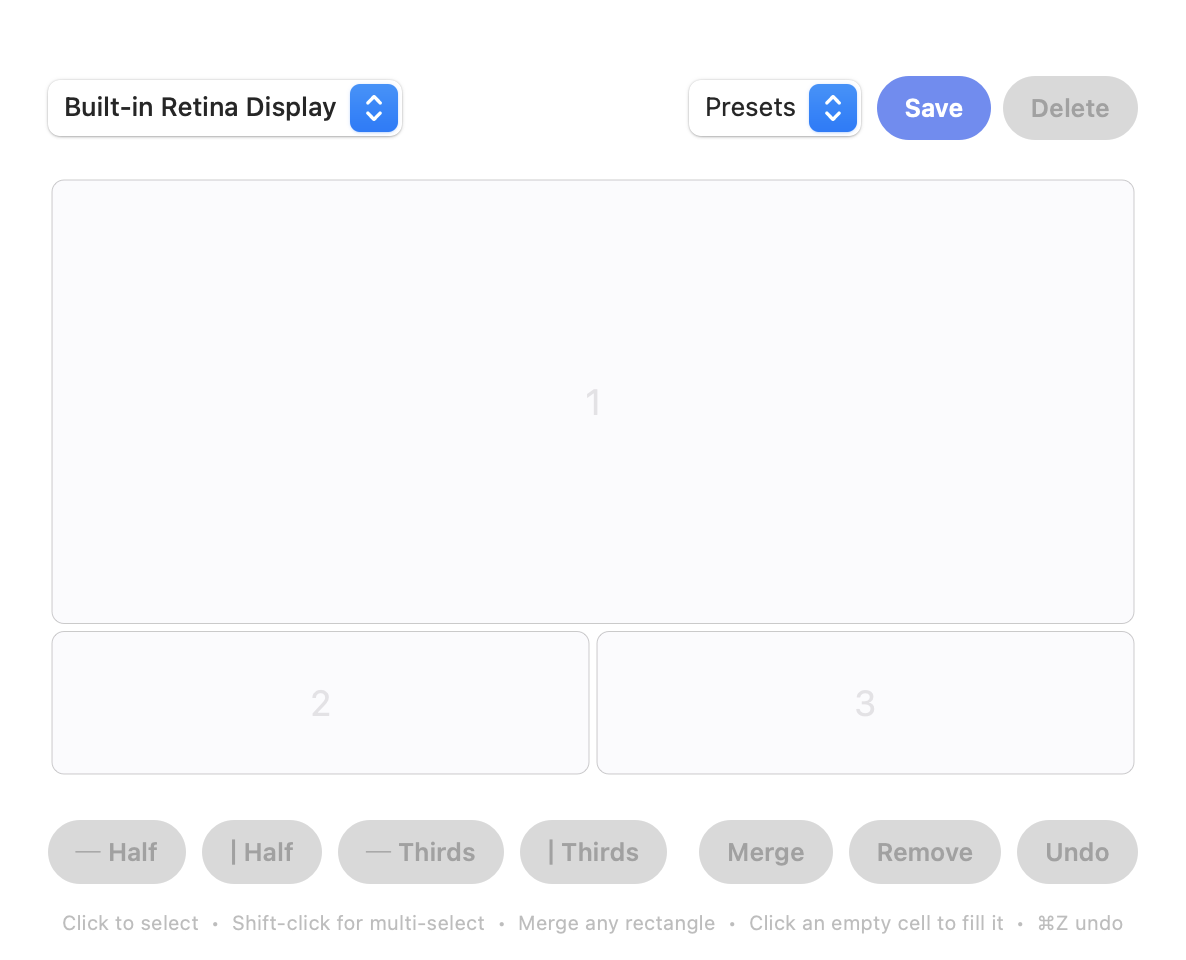
When your layout isn’t a clean half or quarter (say a browser taking the left three-quarters with a chat and a terminal stacked on the right) a zone-based tool fits better. Screen Divider lets you build that grid once in a visual editor, merge cells into the exact zones you want, and then drag any window in. An overlay shows where it will land; releasing snaps and resizes it.
Windows-style snapping on a Mac
If you’re coming from a Windows PC, most of what you know has a Mac equivalent on macOS 15 or later; the keys are just different. Here’s how the features in Microsoft’s Snap your windows guide map to Apple’s window tiling shortcuts (both checked October 21, 2026):
| On Windows | On a Mac (macOS 15+) |
|---|---|
| Drag a window to the left or right edge to snap it to that side | Same: drag to the left or right edge to fill that half |
| Drag to a corner to snap it to a quarter | Same: drag to a corner to fill a quarter (corners have no keyboard shortcut on the Mac) |
| Windows key + Left / Right Arrow | Fn-Control-Left / Right Arrow |
| Windows key + Up / Down Arrow | Fn-Control-Up / Down Arrow (top or bottom half), Fn-Control-F to fill the desktop |
| Snap layouts: hover over the maximize button, or Windows key + Z | Hover over the green button in the window’s top-left corner, or use Window › Move & Resize |
| Snap Assist: after snapping one window, pick another to fill the other side | Fn-Control-Shift-Arrow puts the active window on one half and a second window on the other |
| Drag the divider between snapped windows to resize both | In Split View, drag the divider line between the two apps |
Two things don’t carry over. Windows offers several predefined snap layouts depending on your display size and remembers Snap groups on the taskbar; macOS stops at halves, quarters and a few half-plus-quarters arrangements (Fn-Control-Option-Shift-Arrow), and has no thirds. If you used Microsoft PowerToys to draw your own zones, that’s the gap Screen Divider fills: see FancyZones for Mac for how those layouts translate.
Setting it up with Screen Divider
- Install the app and grant Accessibility access when macOS asks (every window manager needs this).
- Click the menu bar icon, choose Edit Layouts, and split the screen into the regions you use.
- Select adjacent cells and Merge them into a single zone.
- Drag any window toward a zone and let go — it snaps and resizes to fill it.
Each display keeps its own layout, so a portrait monitor can have tall stacked zones while your main screen has columns. Coming from Windows? See FancyZones for Mac. Still using Spectacle? It’s discontinued; see what to replace Spectacle with.
FAQ
Can macOS snap windows without an app?
Yes, on macOS Sequoia (15) and later: drag a window to a screen edge or corner, or use Window › Move & Resize. Earlier versions only have Split View. Apps add thirds, custom layouts and saved zones.
Which macOS version added window snapping?
macOS Sequoia (macOS 15), released in 2024, added native window tiling by dragging to edges and corners, plus keyboard and menu shortcuts.
Do window snappers need special permission?
Yes — all of them need macOS Accessibility access, which you grant once in System Settings. That’s the permission that lets an app move your windows.
What makes Screen Divider different from keyboard snappers?
It snaps by dragging into zones you design, and it can merge cells into one zone — layouts that aren’t simple halves or quarters.
Is there a Windows key + Arrow shortcut on a Mac?
On macOS 15 or later, Fn-Control plus an arrow key tiles the active window to the left, right, top or bottom half, and Fn-Control-F fills the screen. Older macOS versions need an app such as Rectangle or Magnet.