 Screen Divider
FancyZones for Mac: the closest equivalent
Coming from Windows and missing PowerToys FancyZones? Here’s what macOS does on its own, and how to get a layout editor with merged zones on a Mac.
FancyZones details from Microsoft Learn (page updated August 25, 2026), checked October 18 and 20, 2026.
What FancyZones does on Windows
FancyZones is the window manager in Microsoft PowerToys. You define zones on your desktop, and when you drag a window into one, it’s resized and moved to fit. The parts people miss most when they switch to a Mac:
- The layout editor. Opened with Win+Shift+` or from PowerToys Settings. You pick a template or create a custom layout.
- Grid layouts. A Grid layout starts as three columns; you split zones, move the dividers, and merge zones by selecting several and choosing Merge. It resizes with the screen.
- Canvas layouts. Free-form zones you move and resize like windows; they can overlap.
- Shift-drag to snap. By default you hold Shift while dragging to show the zones, then drop the window on one.
- Per-monitor layouts and keyboard shortcuts to move windows between zones.
FancyZones is Windows-only. There’s no Mac version of PowerToys.
The closest thing on a Mac
macOS 15 and later can tile windows to halves and quarters on its own (see how to tile windows on a Mac), but it has no layout editor and no custom zones. For the FancyZones way of working (draw zones once, drag windows in), you need an app. (If you’d rather have windows tile themselves automatically, the way some Linux setups do, see our comparison of yabai and AeroSpace tiling managers.) Here’s how Screen Divider’s concepts map to FancyZones:
| FancyZones (Windows) | Screen Divider (Mac) |
|---|---|
| Layout editor (Win+Shift+`) | Layout editor from the menu bar icon |
| Grid layout: split zones, move dividers | Split the screen into halves and thirds, as fine as you need |
| Select zones › Merge | Select adjacent cells › Merge into one zone |
| Drag a window into a zone to snap | Drag a window toward a zone; an overlay shows the target and it snaps on release |
| A layout per monitor | A layout per display |
| Canvas (overlapping, free-form zones) | Not offered: zones come from the grid |
| Keyboard shortcuts between zones | Drag-first; no zone shortcuts claimed |
| Free, part of PowerToys | $12 one-time |
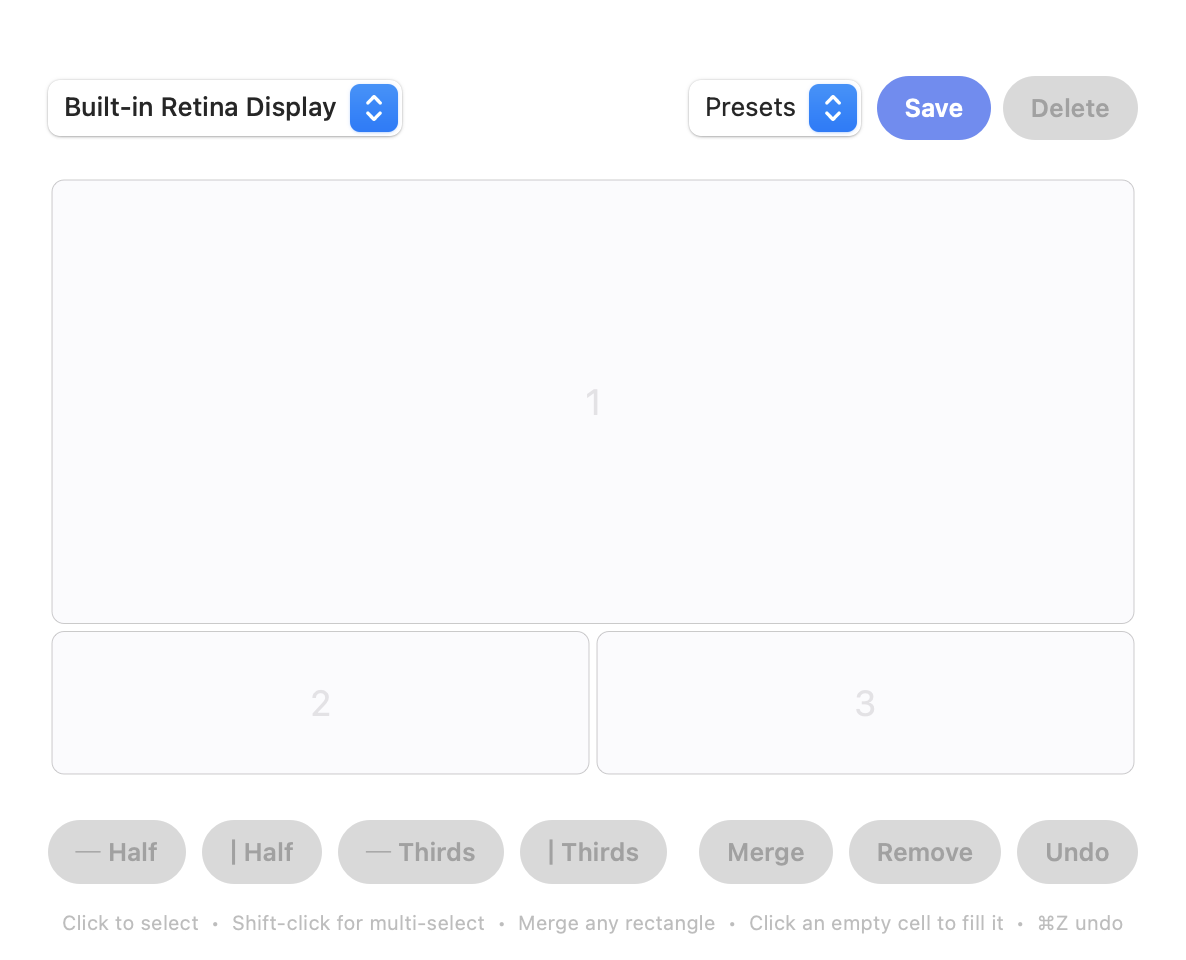
If you built FancyZones Grid layouts and merged zones, the Screen Divider editor will feel familiar:
Setting it up
- Install Screen Divider and grant Accessibility access when macOS asks. Every Mac window manager needs it; it’s the macOS equivalent of letting PowerToys move windows.
- Open the layout editor from the menu bar and split the screen into the regions you used in FancyZones.
- Select adjacent cells and merge them into zones.
- Drag a window toward a zone and let go.
Rebuilding your FancyZones layouts on a Mac
Most FancyZones setups fall into a few shapes. Here’s how to rebuild each one in Screen Divider’s editor with just two moves: split, then merge.
- A wide center column (great on an ultrawide). Split the screen in half, then split each half again so you have four columns. Select the two middle columns and merge them. You get a quarter, a wide half in the middle, and a quarter, the Mac version of a FancyZones layout with a big center zone.
- One main window plus two stacked on the side. Split into thirds, then split the right-hand third into a top and bottom half. Merge the left two columns into one zone. The main app gets two-thirds of the screen; chat and a terminal share the rest.
- A big area on top, short panels below. Split the screen top and bottom, split the bottom row into columns, and merge across the top. That’s the layout in the screenshot above.
- A portrait monitor with stacked rows. Because each display keeps its own layout, a vertical screen can have three rows while your main screen keeps its columns (see using a vertical monitor with a Mac).
Habits that change when you switch
- Merge ahead of time. In FancyZones you can drop a window across two zones on the fly (Microsoft documents holding Ctrl, or using the middle mouse button, to select several zones). In Screen Divider you merge the cells in the editor first, and the merged zone is always there to drag into.
- No Shift key needed. FancyZones shows zones when you hold Shift while dragging (by default). In Screen Divider you drag a window toward a zone and an overlay shows where it will land.
- Windows Snap shortcuts. If you also used Win+Arrow to snap to halves, macOS 15 and later have a built-in equivalent: Fn-Control-Arrow. Our guide to split screen shortcuts on Mac lists them all.
- Zones across monitors. FancyZones has an option to treat all monitors as one big screen. Screen Divider keeps a separate layout per display instead.
Prefer keyboard snapping to halves and thirds? Free Rectangle is a good fit. Want saved layouts and grids from another angle? See our Divvy and Moom comparisons, or every way to snap windows on a Mac.
FAQ
Is there FancyZones for Mac?
No. FancyZones is part of Microsoft PowerToys, which runs on Windows only. On a Mac, apps like Screen Divider give you a layout editor with zones you drag windows into.
Can I merge zones on a Mac like in FancyZones?
In Screen Divider, yes: select adjacent cells in the layout editor and merge them into one zone, much like merging zones in a FancyZones Grid layout.
Does macOS have anything like FancyZones built in?
macOS 15 and later can tile windows to halves and quarters by dragging to edges, but there’s no layout editor or custom zones.